Sunday, January 6, 2013

Restoration reinvigoration

Today we’re pleased to release redsn0w version 0.9.15b1, with significant new features supporting restoring to older firmware no longer being signed by Apple.  For brevity, we’ll list most of the new features in bullet form.  For more details, please feel free to drop by our comments section, or check out any upcoming guides on tutorial sites like http://iclarified.com
First, the high-level new feature list:
  • restore from any 5.x iOS to any other (up, down or the same) 5.x iOS on all devices as long as you have the correct blobs (see more below)
  • Cydia now included in the tethered 6.0 jailbreak on A4 devices
  • automatically “Just Boot” tethered when qualifying A4 device connects in DFU mode
  • untethered 6.0 jailbreak on old-bootrom 3GS
  • untethered 6.0 hactivation on any 3GS or iPhone4
  • directly restore pre-A5 devices to earlier firmware — no more complicated 15-step how-to’s with stitching, iTunes errors, and “hosts file” concerns
  • fetch new signed blobs for any IPSW (present or future — no redsn0w update required) using Extras->SHSH Blobs->New
  • block the BB update for any 3GS or iPhone4 restore (past, present, or future — no redsn0w update required) using Extras->Even More->Restore
  • deactivate any iPhone, useful for testing your “official” unlock status through iTunes.  (Please only deactivate your own iPhone!)
  • activation status shown on “Even more” page
  • significantly more (very nerdy) info returned by “Identify” button when device is in Normal mode
  • tethered jailbreak of ATV2 supported (but the only thing available for it is the SSH2 custom bundle available here — no Cydia yet.  Must use “Select IPSW” for tethered boot of ATV2 for now).
  • auto-exit WTF mode for older devices with broken buttons
  • any time a set of blobs is fetched remotely (from Apple or Cydia), redsn0w also saves them locally (and will check there first if you click “Local”)
  • for your future restoring convenience, you should also submit all of your past and present TinyUmbrella blobs to Cydia if you haven’t done so yet.  Resubmitting is okay and won’t cause conflicts.
Here are more details on the iOS5-to-iOS5 restores for A5+ devices.  (Note: pre-A5 devices don’t have these restrictions — just follow the redsn0w prompts during the restore).
1. redsn0w now lets you restore an A5+ device from any iOS5 to any other iOS5 as long as you have correct 5.x blobs for the starting (current) and ending points of the restore
  • APtickets eliminated “higher-version only” comparison of firmware restores (just like BBtickets did for the baseband)
  • example restores supported by redsn0w if you have the correct blobs: 5.1.1-to-5.0.1, 5.0.1-to-5.1.1, 5.1.1-to-5.1.1, 5.0.1-to-5.0.1
  • if you don’t have the blobs locally, let redsn0w try to fetch them remotely (redsn0w always tries both Apple and Cydia).  Any succesful remote fetch also saves a local copy too.
2. You DO NOT QUALIFY for iOS5-to-iOS5 restores if you got to your current 5.x via an OTA update
  • the tickets saved by Cydia, redsn0w, and TinyUmbrella do not cover OTA update ramdisk images 
  • even if they did, it’s the “wrong kind” of ramdisk (you’d need to start at that earlier pre-OTA FW)
  • devices fresh from factory or refurb may fall in the “does not qualify” category (your results will vary)
  • it’s okay if you previously got to 5.x via an OTA update, as long as your current 5.x was installed via a normal iTunes restore.  All that matters is how you got to your current 5.x most recently
  • redsn0w detects an OTA/normal-restore APticket mismatch very early, so if you don’t know your status there should be no harm in trying.  Any device in recovery mode after such a mismatch can boot normally again just by going back to “Even More” screen from the “Restore” screen (or use “Recovery Fix” if you quit redsn0w before doing that).
3. Unlike the A4 devices, redsn0w can’t (usefully) prevent the baseband updates of A5+ iPhones and iPads.
  • and so, redsn0w automatically flashes the currently signed baseband when it does A5+ restores, even if those basebands didn’t come with the original firmware
  • stay away from this if you have an unofficial unlock that isn’t supported by the newest baseband
  • the least-tested baseband update code in redsn0w is for iPad2,3 and iPad3,2.  Please give any feedback on those iOS5 restores in the comments section below.
4. iPad2 owners (all three models) with saved 4.x blobs can use those instead, even from 6.x
  • if you have both 4.x and 5.x iPad2 blobs, you can always get to 5.x via the 4.x blobs, even if you’re currently on 6.x
  • you cannot get to 5.x from 6.x without the 4.x blobs (but you may still qualify for the iOS5-to-iOS5 restore described above)
  • if somehow you have 4.x blobs but no 5.x blobs, you can still go down to 4.x from 6.x
  • this only applies to iPad2 owners (they’re the only A5+ devices that ever had a public 4.x FW)
  • redsn0w still supports (but doesn’t require) jailbreaking A5+ devices at 5.0.1 and 5.1.1.  Just head back to the first page after re-restoring to 5.x.  It’s always much faster to jailbreak those FW versions with a freshly-restored device, before letting iTunes restore from a saved userland backup.
And finally, some random details:
5. ultrasn0w isn’t yet updated for 6.x
  • by now you probably should be taking advantage of the extremely cheap IMEI-based unlocks of iPhones sold by established online retailers like http://cutyoursim.com
  • still, IMEI-based unlocks don’t work in all cases.  We’ll announce when ultrasn0w is ported up to 6.x
  • redsn0w will still hactivate your 3GS or iPhone4 if you run it before the device is activated.  Due to the current tethered 6.x JB status, redsn0w now hactivates 6.x without requiring subsequent tethered boots.  If you accidentally hactivate with redsn0w, use the “Deactivate” checkbox available from the Jailbreak screen, not the normal one in “Even more”
6. As always, redsn0w lets you “Fetch” the SHSH blobs currently flashed onto your pre-A5 device
  • use this if you’re at 5.x or 4.x but without having saved your blobs when the window was open
  • this is only useful when Apple is no longer signing the firmware, otherwise Cydia/redsn0w “New”/TinyUmbrella blobs are superior (but you’re welcome to fetch your 6.0 blobs this way anyway)
  • fetching blobs in this fashion will automatically forward them up to Cydia, as well as save a local copy
We realize there’s a lot of info in this post.  If you’re at all confused about things remember to visit our comments section, with our very helpful user base and moderators like dhlizard, Frank55, 41willys, and slavakulikoff.
If you’re in the Melbourne, Australia area, MuscleNerd (and another anonymous long-time Dev Team member) will be giving some talks at the Breakpoint conference http://www.ruxconbreakpoint.com this week.  And @mdowd’s iOS talk at the same conference should be quite interesting too!  We’ll also all be attending Ruxcon a few days later, so say hi if you see us!

Update #1 (Oct 15): Version 0.9.15b2 fixes a few issues for 3GS owners: old-bootrom awesomeness is no longer forgotten directly after a restore, and iPad baseband upgrade/downgrade support is fixed (same production date cutoffs apply!).  If your 3GS is currently tethered at 6.0 even though you have an old bootrom, just re-run redsn0w’s Jailbreak step (no need to restore).  Don’t forget you can add some pizzaz with your own boot logo or a nerdy verbose boot.
Update #2 (Nov 1): Version 0.9.15b3 fixes the redsn0w “error 2601” that Windows users were seeing using the Restore button.  It also fixes a related Windows iTunes error 14 for stitched files.   Note that if you have a baseband, you should probably avoid stitching and simply use redsn0w’s native Restore (not iTunes).
Those lucky recipients of new iPad minis and iPad4s on Friday can use this redsn0w to save your 6.0 blobs off to Cydia.  First connect your new device and turn it on, then use redsn0w’s Extras->SHSH Blobs->New and point it at the 6.0 IPSW.
Expect an ultrasn0w compatibility update for iOS 6.0 by Friday (mostly useful for 3GS old-bootrom users who are currently enjoying the untethered 6.0 jailbreak!).  Same baseband support as with 5.x.
Thanks to @iamgolfy for helping test the 2601 Windows fix!
Here are the download links.  Enjoy!
»»  read more

Blob-o-riffic

Today marks the public release of iOS6!  For those devices capable of running 6.0, the 5.1.1 SHSH blob signing window will soon close, so it’s very important that you backup your 5.1.1 blobs now while you still can.  We advise you do it for every device you have (see tutorial sites like iClarified if you don’t know the process).
A few months back we released a redsn0w feature that lets you downgrade A5+ devices from 5.1.1 to anything lower (if you had saved blobs).  Unfortunately once the 5.1.1 window closes, redsn0w’s 5.x downgrade feature will no longer work.  Most A5+ users will not be able to downgrade.  So if you’re an A5+ owner up at 6.0 when the 5.1.1 window closes, you’ll be stuck there without a jailbreak for now.
We’re happy to report there are some serious deficiences in the 5.x restore process that are permanently exploitable. They’ll never be fixable by Apple because they’re all self-contained in the 5.x IPSWs.  Here’s the breakdown:
  1. A4 devices and 3GS will always be downgradable (and jailbreakable) with saved blobs due to limera1n.  The tethered iOS6 jailbreak for those devices (and untethered for old-bootrom 3GS) will be out when Cydia and other important pieces are all working properly.
  2. iPad2 owners who have both 4.x blobs and 5.x blobs will always be able to downgrade to those versions, even once you come up to 6.0 and the 5.1.1 window closes (don’t do that yet though!).  You need both 4.x and 5.x blobs to qualify for the 5.x downgrade even though you only wish to downgrade to 5.x (you need only your 4.x blobs to downgrade to 4.x)
  3. iPad3, i4S (and iPad2 owners who don’t satisfy #2) will always be able to RE-restore the current 5.x OS that’s already on their device.  So if you’re at 5.1.1 when the window closes (and you’ve saved your blobs), you’ll always be able to RE-restore to 5.1.1 again.  This makes the 5.1.1 jailbreak a lot less fragile — you don’t have to worry about messing up your install with funky extensions or getting into a boot loop, because you can always RE-restore from 5.1.1 to 5.1.1 again (or from 5.0.1 to 5.0.1 again, etc).  But once you fall off the 5.x train by restoring to 6.x, you’ll be stuck there until the next jailbreak.
Please be aware that RE-restores and iPad2 downgraded devices will always end up with the latest baseband (not the one that came with that firmware).  So don’t go near any of this if your unlock depends on the baseband version.
All of these features will be released shortly in a new version of redsn0w.  In the meantime please be sure you have your 5.1.1 blobs and stay at 5.1.1.  Happy iOS6 day!
Update #1: For a refresher on why saved blobs are not as powerful as they used to be, please see our Blob Monster post (the scenarios described above are possible only due to mistakes made by Apple, but those mistakes are being cleaned up with each new firmware).
»»  read more

All aboard the update train!

Here are some details on our latest version of PwnageTool for Mac OS X that adds support for the 3.1 release of the iPhone software for iPhone 3GS and iPod Touch 2G.
SUMMARY:
The iPhone 3GS is now supported in PwnageTool 3.1.3, assuming the phone was pwned at 3.0 or 3.0.1 - PwnageTool does not support the 3GS out of the box. If your iPhone 3GS has 3.1 preinstalled and is not Pwned then there is no tested jailbreak solution at the moment.
The iPod 2G is now supported in PwnageTool 3.1.3, assuming the iPod 2G was pwned at 3.0 or 3.0.1 - PwnageTool does not support the iPod 2G with 3.1 software out of the box.
DETAILS:
  1. GOLDEN RULE: If you are using a iPhone 3G or iPhone 3G(S) with ultrasn0w and rely on ultrasn0w to obtain cellular service then you should only update your device with an .ipsw that is made with the new PwnageTool. There are no second chances with this. You need to remember that PwnageTool will provide an upgrade path to newer versions of the iPhone software in the future.
  2. Please read all parts of this post before downloading and using these tools.
  3. Read items 1, 2 and 3 again and again.
  4. At the bottom of this post are the bittorrent files for the 3.1 capable version of PwnageTool.
  5. PwnageTool will work for the iPhone 3GS assuming you have already Pwned it at 3.0 or 3.0.1
  6. PwnageTool will work for the iPod touch 2G assuming you have already Pwned it at 3.0 or 3.0.1
  7. PwnageTool WILL work for Original iPhone (1st Generation), the iPhone 3G and iPhone 3G(S) and the iPod touch (1st Generation and 2nd Generation) but NOT the iPod touch 3rd generation.
  8. For 3G and 3G(S) users who are Pwned, PwnageTool is your key to updating in the future, just remember to never install an update directly from Apple, always use an .ipsw that has been created with PwnageTool.
  9. There is no Windows version of PwnageTool it is a Mac OS X tool only, we are not developing a Windows version of PwnageTool.
What’s a Baseband?
The ‘baseband’ is the generic nickname given to the internal components of the iPhone that handle the phone calls and Internet access. This ‘baseband’ is a tiny and unique independent computer system that runs inside your iPhone, it is separate to the main system that handles the applications (such as email and google maps) and it talks to the main part of the phone over an internal communications network.
Think of it like a cable modem or other peripheral that is attached to your home PC that needs occasional updates. When a software update is released and presented to you within iTunes the baseband is sometimes updated (to fix bugs or add new features).
The 3.1 update for the iPhone 3G and 3GS contains such an update, so running the vanilla updater straight away with iTunes will reprogram and update the baseband.
WHICH DEVICE DO I HAVE?
Read the description to identify your device, once you have correctly identified your device follow the specific instructions for that device as listed below.
SIM Free/SP Unlocked/Factory Unlocked iPhone 3G(S)
This applies if you bought your iPhone 3G(S) for $$$$$$$. This model of iPhone 3G(S) doesn’t have an Service Provider lock (aka factory unlocked) and you are able to put any SIM card into the phone and get service. Your phone is already unlocked so you do not need to worry about baseband updates, if your device was Pwned at 3.0 or 3.0.1 then you can use PwnageTool to create an ipsw and then use this to update and jailbreak your phone.
SIM Free/SP Unlocked/Factory Unlocked iPhone 3G
This applies if you bought your iPhone 3G for $$$$$$$. This model of iPhone 3G doesn’t have an Service Provider lock (aka factory unlocked) and you are able to put any SIM card into the phone and get service. Your phone is already unlocked so you do not need to worry about baseband updates,  if your device was Pwned at 3.0 or 3.0.1 then you can use PwnageTool to create a 3.1.ipsw and then use this to with iTunes to upgrade and jailbreak your phone.
iPhone 2G (1st Generation)
Use PwnageTool to do the magic and then restore with iTunes using your newly created .ipsw ‘nuff said, you don’t need to worry about anything, the baseband will be unlocked, the phone jailbroken.
iPod Touch 1G (Original iPod Touch)
Use PwnageTool to create a firmware image and restore with that .ipsw using iTunes.
iPod Touch 2G
Use PwnageTool to create a firmware image and restore with that .ipsw using iTunes, this will only work if you are already Pwned at 3.0 or 3.1. If you are at 3.1, downgrade to 3.0 and use redsn0w to Pwn 3.0 then you have an upgrade path using PwnageTool.
iPod Touch 3G
At this time PwnageTool does not support this device.
Official Bittorrent Releases -
Unofficial Mirrors
The following links are unofficial download mirrors, you download these at your own risk, we accept no responsibility if your computer explodes or if it becomes part of a NASA attacking botnet or even worse if your hands fall off mid-way during the use of these files. We do not check these links or archives and we accept no responsibility with regard to the validity of the files, or with other content these links provide or with the content that is on the linked site.  Always check the published SHA1 sums. We would prefer that you downloaded the official bittorrent release that is linked above, but you are welcome to try these if you really must. Mirror owners should email direct links only to blog@iphone-dev.org , please don’t place mirrors in the comments as they will be deleted.
»»  read more

Welcome to my site!

This site contains a lot of games and apps for iphone 2g, 3g using IOS 3.1.3 and below.
»»  read more

Monday, September 26, 2011

Gaming For Lulz: How to install Windows 8 to allow dual-booting.

id='post-body-5069552117736717044'>


A pre-beta Windows 8 Developer Preview is now available for download on Windows Dev Center


To experience the new (somewhat buggy) release, you must download the .iso and install the OS.


But with a lot of people around the internet a little rusty on formatting, shrinking and setting up a dual-boot system I've put together a little guide some of you should read before plunging into a world of sliding squares.


Firstly, if you only have one main hard drive, you need to make space for the new Windows 8 install by shrinking your current volume and partitioning a clean space for the new files.


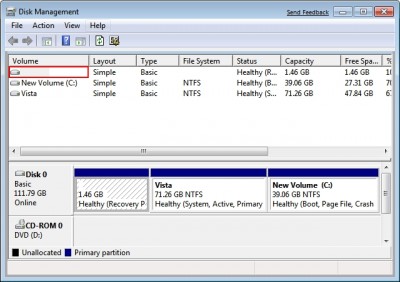
Go to Start - Right click 'My Computer' and select Manage - Then select Drive Management from the left hand window - Now you should be presented with your drive setup.


If you have only one hard drive, you should see one main block on the lower window. Some drives have a designated partition called "System Reserve" within the main drive. Don't worry about that, it's used for restoring systems and so on. *LEAVE IT ALONE*


Now right click your primary partition and select Shrink.


After the shrinking calculations are done you're presented with a menu that allows you to select how small or large you want the current drive to be shrank to. Just clicking OK ensures that no files will be lost and a safe amount of space will be set aside.


Now you will notice the main block of your hard drive has been split, with a new unallocated space appearing representing the free space we will use for the new install.
Right click this unallocated space and click Format.
Follow the instructions, making sure the file system is set to NTFS.


Also to make life easier name the new volume to something like "Windows8Dev". This just makes for easier navigation later in life.


After this is done you're ready to install Windows 8.


CDBurnerXP


MagicDisc

After downloading the .iso from here, you either need to burn it to a disc using a freeware .iso burner like CDBurnerXP or mount it to a virtual drive using MagicDISC.
I wont go into detail about the process of burning or mounting image files. Google it.


After mounting or burning the image, you need to browse the disc.


DO NOT AUTORUN THE SETUP - THIS WILL RESULT IN A FRESH COPY OF WINDOWS - WITH THE RISK OF LOSING CURRENT OS AND DATA


Browse the disc and search for the setup application within the sources folder on the disc/image.


WindowsDeveloperPreview/sources/setup.exe


Double click the application and allow it to run, follow the steps, making sure that you select to install a new copy of Windows and select the new partition you made.


After following all steps, and after your computer restarting a couple of times you will now be able to boot into Windows 8 Developer Preview. Simply select Windows 8 from the boot menu that comes up after turning your PC on.


The rest is easy. Just follow the setup instructions on screen.


To boot into your native/first/current operating system, simply select it from the boot menu when your PC starts up.


If you're having problems or don't understand the guide fully, leave a comment and I'll try and help.

Source: http://gamingforlulz.blogspot.com/2011/09/how-to-install-windows-8-to-allow-dual.html

»»  read more