Showing posts with label windows 8. Show all posts

Saturday, September 24, 2011

Sokutaban's Blog: Installing Inventor 2012 Pro on Windows 8 ...

id='post-body-7258092539157795683'>
The program fails installation, as you may have guessed already. So this is a small guide to get through the installation on a 64-bit machine running Windows 8 developers edition.


Error 1:
Crashes upon selecting install after launching the setup program.
Solution - select "Install Tools & Utilities" then agree to the licence agreement and press next.  Press back then back again to get back to the screen with the install button once again.  Select install.


Error 2:
Fails to install Microsoft Visual C++ 2008 SP1 Redistributable (x86) on a 64 bit machine.
Solution - manually install it by going to the log file that is displayed when the setup fails - this appears as a link.  Look at the bottom of the text file and it will show the directory of the install file along with other info about the installation failure. Install Microsoft Visual C++ 2008 SP1 Redistributable (x86) by going to the directory shown in the log and installing it.


Error 3:
Install fails when attempting to install Design Review 2012.
Solution - Uncheck the checkbox for Design Review 2012, hope you didn't need it.

Source: http://sokutaban.blogspot.com/2011/09/installing-inventor-2012-pro-on-windows.html

»»  read more

Friday, September 23, 2011

The Complete Guide To Windows 8 File History Backup


File History is a new file backup and restore feature of Windows 8, which will become the reason to ditch all third-party file backup applications that comes with complex settings in order to seamlessly save and maintain different versions of files. It works just like Windows Restore Point, allowing you to save the User Profile folders to any external storage devices, so they can be easily restored at any time. Unlike many 3rd-party file backup utilities, it keeps track of file versions to easily identify and restore the file version you want to its original location. The File History backup replaces the old Previous Versions feature which didn’t have any extra file backup support. Windows 8 backup feature not only lets you better control the way of performing backup jobs but also allows managing file versions from an overly simplified interface. In this post, we will explore different aspects of Windows 8 File History feature, look at how it works, and let you know how to use local drive to backup file versions.


»»  read more

[Guide]Install Windows 8 on VMware Workstation with VMware Tools


Finally Microsoft released the first distribution of Windows 8 as developer preview version. So, this is the time to play around with latest Operating System without disturbing existing physical OS. Desktop virtualization software will be helpful to run these types of beta and developer preview versions on your home or office computer. This small guide shows how to install Windows 8 on VMware workstation 8 and install VMware tools on it.
Earlier Sysprobs covered an article on install Windows 8 on VirtualBox, but after the release of VMware workstation 8, this installation is possible with VMware too. I feel Windows 8 is working smoothly in VMware workstation than in Oracle VirtualBox.

»»  read more

Home >> Tutorial Guide to Install Windows 8 on VirtualBox


Microsoft released a developer preview of Windows 8 last night and surprisingly made it available for general public too. Though this brand new OS is half-baked and is meant to be used by developers to build apps for Windows 8, it’s way too tempting for a non-developer to let go the opportunity to get the first taste of a hot & sexy OS.
Not to worry, we have a detailed yet simple guide to help youinstall and test-drive Windows 8 on your existing PC using a free to use virtualization software called VirtualBox. Though there are other VM (virtual machine) software like VMware Workstation and Virtual PC, I would advice you to go with VirtualBox as I have been getting reports of failed installations on VMware and Virtual PC, possible because Windows 8 requires IO APIC enabled to run on VMs, which is available only on VirtualBox.

»»  read more

Wednesday, September 21, 2011

meraTechPort: Windows 8 Product Key required during reinstallation

id='post-body-7366519863137477925'>


Many people while trying to Reinstall Windows 8 Developer Preview are being asked to enter Product Key and are not able to proceed without skipping this step. This might also happen when using the Reset functionality. As I could install in my first try so the case didn’t arise for the Product key and as such Product keys


For this the Microsoft Support has provided these Product keys -


6RH4V-HNTWC-JQKG8-RFR3R-36498


If you are running a Server version of Windows DP then you can use this key -


4Y8N3-H7MMW-C76VJ-YD3XV-MBDKV


Also you can find the Product keys in a PID file when you go to the Sources folder of the ISO burned disc.


win8productkey


For many these Product keys didn’t work, So please note that the first time install might have failed due to mismatch in SHA1 so please verify this and also error during ISO burning so burn the ISO at lower speed and check the ‘verify after burning’ option if you are using the Windows 7 inbuilt burning. This has worked for many .


Source: http://vasudevg.blogspot.com/2011/09/windows-8-product-key-required-during.html

»»  read more

Tuesday, September 20, 2011

Henk's blog: Guide to remove Windows 8 on a VHD (Virtual Hard Disk)

id='post-body-2777858754646073496'>
Last week I posted a setup for installing Windows 8 on a VHD (Virtual Hard Disk). Have a look for that here: Guide to install Windows 8 on a VHD. Now I received some questions how to make the Windows 8 setup undone, so Windows 7 will be the default Operating System again. In this blog I will give some solutions for this!

First it's possible to make Windows 7 the default Operating System again, without removing the Windows 8 installation. This is the easiest one to configure. Just boot from hard disk then, and while on the "Choose an Operating System" screen select "Change defaults or choose other options".


Then select "Choose the default operating system" to select Windows 7 as default OS again. It's also possible to change the default timer (from 30 seconds to 5 seconds) for faster boot there.


That way another boot menu will be used (from Windows 7 OS) which is must faster for booting Windows 7 AND Windows 8. I prefer this one because it's faster, not for the better menu.


Now another solution for totally remove Window8 from the boot menu. There are a few possibilities to make this possible:


  • Use BCDEDIT and remove the Windows 8 boot entry


  • Rebuild the boot menu from the Windows 7 DVD repair option


  • Use BCDBOOT to repair boot files or create a new BCD store


It's of cource possible to remove the VHD file from hard disk. Then the boot menu will not be changed, and when selected "Windows 8" an error will follow:


Nothing to worry about, but not the better solution. It can be still part of a solution when using BCDEDIT, Windows 7 repair option or BCDBOOT. I will explain them all now.


With BCDEDIT many options comes available to add, delete, edit, and append entries in the boot configuration data (BCD) store. The BCD store contains boot configuration parameters and controls how the operating system is booted.


When not sure about BCDEDIT command first create a backup with: BCDEDIT /Export C:BCDCOPY. Then delete the Windows 8 entry with the BCDEDIT /Delete command. For doing that the Identifier is needed. This can be found with the BCDEDIT command (without parameters):


The command for deleting Windows 8 here (in my case) is BCDEDIT /Delete {3b0c2878-9f48-11df-8e48-a2ba939022f2} /Cleanup. Let's have a try! I've deleted the Windows 8 entry and Windows 7 is booting immediately after reboot. Exactly what I want. No need to display the 30 seconds timer anymore, because there's only a single OS left.


When running BCDEDIT again my Windows 8 entry is gone, and Windows 7 will be the only OS left to boot. When I want to go back to Windows 8 again I choose: BCDEDIT /Import C:BCDCOPY to have it all functional again.

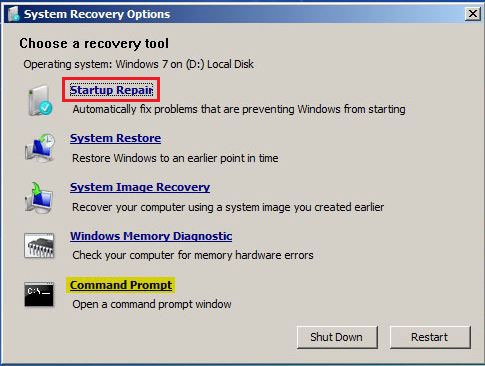
The second solution is the Windows 7 repair option. Just start from a Windows DVD and choose "Repair your computer". Then select your OS (Windows 7) and choose "Startup Repair". The boot manager will then be repaired, and Windows 7 will be the default OS again. That way no rollback to Windows 8 is possible, because a clean boot manager is created.


If you click on “Startup Repair” then Windows will scan your system for common errors and will hopefully figure out that your boot manager is broken. A simple solution and maybe the most effective?


At last there is the BCDBOOT command. With BCDBOOT it's possible to copy critical boot files to the system partition and to create a new system BCD store.


I'm not that familiar with BCDBOOT, but for more information about this there is a TechNet post available: BCDboot Command-Line Options. It seems the most effective for creating a new BCD store or to add boot options to an existing BCD store.


For example, to create a BCD store on the default system partition with the optional locale parameter set to US English, you would use the following command: BCDBOOT C:Windows /l en-us


Hope you have enough tools by now to remove Windows 8 from the boot menu and re-use Windows 7 as the only OS installed (if needed).

Source: http://henkhoogendoorn.blogspot.com/2011/09/guide-to-remove-windows-8-on-vhd.html

»»  read more

Saturday, September 17, 2011

Ash Owen Davies: Touch Enabled Desktops

id='post-body-8757908206141907152'>


Today I got the chance to try out the new Developer Preview of Windows 8, something I've been looking forward to since the first announcement of the project some time ago. After initially attempting to load it onto my VMWare 7 setup, I was presented with a new style blue screen, a refreshing remodel of the classic. Through some forum trawling I had found that the release only works on the most recent version 8 of VMWare. A trial version of VMWare is available from the publishers website, like most trials it lasts for 30 days, and requires an arduous license request process, but the end result is a good solid sandbox environment.


Windows Metro UI

The installation was fairly quick, despite only sharing a portion of the computers resources, but that doesn't really hold much necessity bearing in mind you only need to install once. Now disregarding the numerous benefits and improvements brought about in Windows 8, such as ARM processor support, Windows to Go, and the rumours of a new file system, there were many changes that I felt simply were not welcome for a desktop. Being that my own specialities lie in the design of user interfaces this is generally what I focus my attention to first, biased or not I think that the new Metro UI is probably the largest change to be brought about in any revision of Windows.


Many believe that we are now in the post-pc era, with the sudden evolution and adaptation of touch enabled devices such as tablets, smart phones and laptops, eclipsing the use of desktops. However I believe that desktop computers still make up a huge proportion of computer users and are still the workhorses that drive the industry. In anticipation of this operating system manufacturers are keen to develop a platform that works for all devices, whilst I can see this is a beneficial feature, I've always believed that something that boasts an ability to perform many tasks does so poorly in comparison to something that delivers a single purpose.


Microsoft isn't the only company to show this, Google's upcoming version of Android (code-named 'Ice Cream Sandwich'), also attempts to shoe-horn the facilities relevant to touch enabled devices into an all-rounder operating system. Whilst I believe that Google will do a better job (this being down to my own preferences) I still feel its the wrong outlook to have.


Though I hold a personal resentment towards Apple and their following, they have achieved one thing correctly, the IOS/OSX holds the same style of user interface across all platforms, whilst keeping the features relevant to the capabilities of the device, this is however one benefit of being able to manufacture the target device along with operating system, a benefit that is not shared amongst it's competitors.


I don't boast to know the ideal solution, should manufacturers segregate the versions of their operating systems to allow for multiple devices? Would this create resentment towards the feature set or a compulsion to own the latest version? Unifying operating system versions may even be the correct solution


In short, desktops aren't touch enabled (or at least they shouldn't be) and trying to fit a solution around that just won't work, Microsoft learn't a big lesson in the wake of Windows Vista, and that showed just how capable they were at listening to user feedback with Windows 7.

Source: http://ashowendavies.blogspot.com/2011/09/touch-enabled-desktops.html

»»  read more

Friday, July 8, 2011

Computer Care Center: You don't have to wait for Windows 8

id='post-body-3996209250051385622'>
It's a common human desire to maintain up with the Joneses and even to play games of oneupmanship, and it's no truer when applied to PCs. while older package and software may perhaps do the job admirably, there's no ignoring the desire for new shiny toys and the newest in cutting-edge technology.
Windows 8 isn't out yet -- the very first beta isn't due to appear for another few months yet -- but that doesn't end people from wanting it. windows 8 UX Pack 2.0 gives you the next best thing: it tends to make windows 7 look and feel just like windows 8.
You'll need to be operating windows 7 to get satisfaction from this preview -- XP and Vista users will be sadly disappointed as it's not compatible with older adaptations of the OS. when you've downloaded windows 8 UX Pack 2.0, unzip the program installer and double-click it to start the setup process. You'll be asked what windows 8 theme you want to apply, which includes the logon screen wallpaper and the desktop wallpaper.
You can also opt to enable or disable three main windows 8 features here, which includes the Taskbar user Tile (which sits in the bottom most suitable of the Taskbar, forcing the Notification place to sidle more than to the left slightly), the Metro user interface and Aero auto-colorization feature.
Once you've set the options which you want, click "Install" and watch your system transform. You'll find the Taskbar user Tile sits somewhat uncomfortably to the most suitable of the Taskbar's Notification area, forcing it throughout slightly to the left. The Metro user interface gives you an idea of how windows 8 will adopt a radically distinctive approach to using the desktop, taking particular benefit of touchscreens. on this preview a few fundamental tools, which includes Gmail, are accessible.
Once the novelty of the windows 8 UI wears off, getting back to excellent old windows 7 is fairly easy, too. Just operate the program again and instead of choosing "Install", select "Uninstall" as well as your system should be back to in which it experienced been when you started.
As with making any tweak that involves altering system files, it's a good idea to make sure you have a total backup before you apply it. you could use windows 7's own drive-imaging tool, accessible via the Backup and Restore tool, or go for a a whole lot more fully functional third-party app like Paragon's Backup and Recovery 2011 (Advanced) Free, our current preferred no-cost drive-imaging tool. That way you have anything to fall back on should disaster strike, which didn't come about on possibly of the two test products we ran windows 8 UX Pack 2.0 on.
Windows 8 UX Pack 2.0 is available as a freeware obtain now for PCs operating windows 7 (32- or 64-bit).

Source: http://softwarewithtools.blogspot.com/2011/07/you-dont-have-to-wait-for-windows-8.html

»»  read more