id='post-body-2915865147825632951'>

Hello, this is a simple tutorial on how to test any windows version without having to wait all that installation,long time or without having to loose your OS and too without having to use virtual PC or any software like it but still u may use virtualbox....
this tutorial is based on a Virtual Drive and some simple steps:-
1- Right click on Computer icon on your desktop then choose manage
2- Window of computer Management should be opened now..
Now click on "Disk Management" then click with right mouse button on it again
and choose "Create VHD"
3- Select the location where you want to put VHD (Virtual Hard Drive). Also, enter it's size and format
4-Congrats! Now it's ready but still few steps
Right click on our new disk and select "Initialize"
5- ok now a here is a new window appears, all you have to do is to make sure that the new disk is checked
and and partition style is set as MBR. Click Ok.
6-Disk status is changed to Online. Right click in the Unallocated space and chose "New Simple Volume"
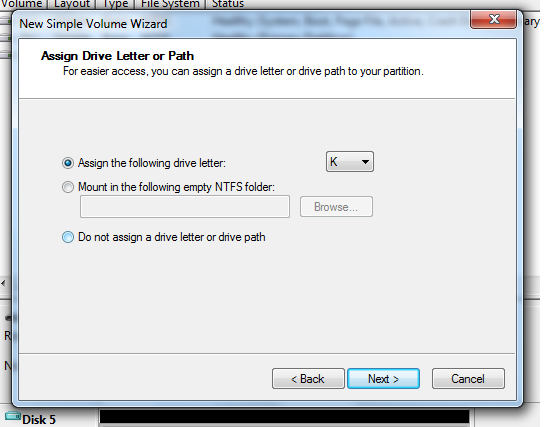
7-A wizard will appear, you don’t need to change any options. Just keep proceeding with Next button.
8- Now here is some magic!!
We all know 7-zip the compression software
You have to install it on your PC.. then go to the iso file then extract it
In the extraction folder go to the folder "sources" and look for a file named "install.wim"
now this file contains the windows OS right click on it and choose "7-zip" in the sub menu choose "extract files"
(Now excuse me for this picture it's written in arabic.. i know rules here says i should only write in English.. but sorry guys 7-Zip for some how didn't changed to English") any way the option you should click is "extract files"
then you have to choose the destination where all these files will go.. sure to our new VHD.. so choose your hard drive and wait for few minutes untill the extraction finish.
9- Now, we will create an entry in boot menu for this VHD using EasyBCD.
you can download it from here
Download EasyBCD
Launch EasyBCD and go to tab Virtual Disk. Add a name of your choice and select where ".VHD" file is located
and click "Add Entry.
10- Now reboot your PC and you will see a Boot Menu
Select Windows 8 entry and Enter. Now, Windows 8 setup will take some time and you are ready to play with it.

Source: http://avi-cul.blogspot.com/2011/05/best-way-to-test-windows-8-quickly-and.html


